
Key Takeaways
- Package only when someone needs to edit the native file. Agencies and freelancers need the package, while printers and partners usually need a finished PDF instead.
- Let File > Package do the gathering. It copies the INDD, linked graphics and font files into one folder and can add an IDML, a print PDF and printing instructions.
- Plan for Adobe Fonts separately. They never travel in a package, so recipients need their own Adobe Fonts access or you replace those fonts first.
- Run preflight before you package. The Preflight panel catches missing fonts, overset text, modified links and low-resolution images before a printer does.
- Store approved packages in BrandLife. BrandLife is a DAM that keeps approved packages and PDFs in one library with version history, and its brand portal controls which partners can reach them.
In the ANA’s 2023 study of in-house agencies, 92% of respondents said they still work with external agencies, even though those companies handle an average of 61% of their work in-house. Everything else crosses a company boundary, and InDesign files are some of the easiest to break on the way.
A layout that looks perfect on your designer’s screen can open somewhere else with missing images and substituted fonts. The printer calls, the agency asks for “the real files” and the launch date slips while someone hunts for a font folder.
Packaging InDesign files takes a few minutes once you know the steps. Run preflight, choose File > Package and select the options for fonts, linked graphics and an IDML, adding a print PDF if the recipient needs one. Then check font licenses, zip the folder and send it through a controlled link.
When Do You Need to Package InDesign Files?
You need a package when the recipient has to open or change the native InDesign file. If they only need to print or publish the finished piece, a PDF or exported image does the job with less risk.
| Recipient | What they need to do | What to send |
|---|---|---|
| Agency or freelance designer | Edit the layout | Full package with IDML and a reference PDF |
| Commercial printer | Print the piece | Print PDF to their spec, with a full package only if they ask for native files |
| Designer on an older InDesign version | Open and edit | Full package with IDML |
| Franchisee, reseller or channel partner | Use the approved piece | Final PDF or exported images, not native files |
| Internal archive | Reprint or update later | Full package plus the final PDF |
What to send each InDesign recipient
A package exists because an INDD file isn’t self-contained. Placed images connect to the layout through a file path, as Adobe’s Links panel overview describes, so if you send the INDD alone, those paths point nowhere on the recipient’s computer.
Why partners rarely need the package
Partners who publish on your behalf rarely need a package at all. A native INDD opens only in InDesign and compatible Adobe apps, according to Adobe’s guide to INDD files, and handing partners editable files invites local changes to logos and claims. Send packages to people whose job is editing, and finished files to everyone else.
What a missing or broken package costs you
The costs of a bad package tend to arrive late, when the job is already on a deadline.
- Low-quality output, since missing links can drop output to reduced resolution or stop it entirely, according to Adobe’s Links panel guidance
- Reflowed text, because a substituted font changes line breaks and can overset copy or shift pages
- Extra proof rounds, with every missing file adding another email and another proof
- License exposure, if you send font files your license doesn’t cover
- Old versions in print, when an outdated package sitting in a partner’s inbox gets reprinted months later
What Should an InDesign Package Include?
A complete package covers four areas, links, fonts, images and output settings. Adobe’s Package for output guide lists the options for most of them.
- Links and Linked Graphics
Select Copy Linked Graphics so every placed image and illustration is copied into the package, then select Update Graphic Links In Package, which points the packaged INDD at those copies. The packaged layout can then find its images wherever the folder goes.
Hidden layers need a decision too. A separate option pulls in fonts and links from hidden or non-printing layers, which you’ll want when the recipient needs alternate versions such as a second language.
- Fonts
Copy Fonts includes the font files the document uses, but Adobe labels it “Copy Fonts (Except activated from Adobe fonts and non-Adobe CJK fonts),” and that exception matters more than most teams realize.
Adobe’s font licensing FAQ says Adobe Fonts can’t be transferred to another user or computer, so a printer or collaborator who needs them in an editable file needs their own license. The same FAQ says a client doesn’t need a separate license for a PDF with properly embedded fonts, which is one more reason printers usually get a PDF rather than a package.
Fonts from other foundries follow their own license agreements, so check each one before font files leave your company.
[IMAGE 3 · Package dialog screenshot] Source · To capture in InDesign by the design team Alt text · InDesign Package dialog with fonts, links and IDML options selected Caption · InDesign Package options to select
- Images
Packaging copies images, but it doesn’t check whether they’re good enough. Open the Links panel and review effective resolution in the Link Info section for each print image, replacing low-resolution files with approved high-resolution versions before you package. Confirm that every image is the approved version too, since a package can carry an old product shot just as easily as the current one.
- Output settings
Output settings tell the recipient how the piece should print and who to call if something looks wrong. Three options in the Package dialog handle this.
- Include IDML adds an InDesign Markup file for backward compatibility, so a designer on an older InDesign version can still open the layout.
- Include PDF (Print) adds a print-ready PDF made with the preset you select. Adobe’s guide to exporting PDFs for printing shows where to choose a PDF/X preset, the standard most printers expect.
- Create Printing Instructions writes a text report with contact details and special notes, such as finishes, paper stock or a folding sequence.
Ask the printer which preset, color profile and bleed they want. Smartpress, for example, asks for a 0.125-inch bleed in its InDesign packaging guide, but your own printer’s spec sheet always wins over any general rule.
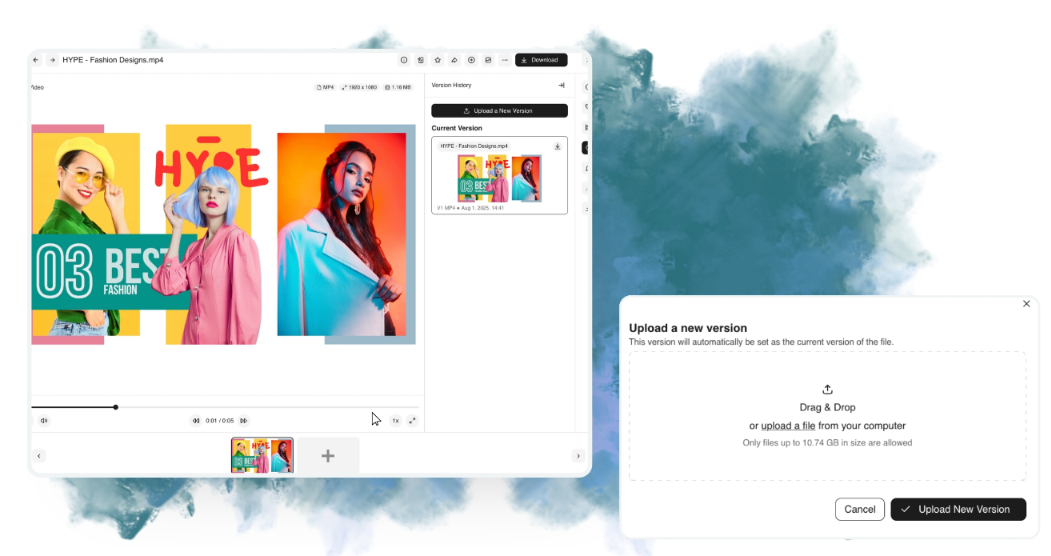
Adobe InDesign Package dialog showing options for copying fonts and linked graphics, updating links, and including IDML and print PDF files.
InDesign Packaging Checklist
Use this checklist every time an InDesign file leaves your team. The steps run in order, from preflight to confirmation.
Preflight
- Open Window > Output > Preflight and clear every error. Adobe’s Preflight panel guide says live preflight warns about problems like overset text and missing fonts, which are far cheaper to fix now than after a proof.
- Fix any link marked Missing or Modified in the Links panel. A missing link can’t be packaged, and a modified one may carry an unapproved edit.
- Check effective resolution for every print image. An image that looks sharp on screen can print soft once it’s scaled up in the layout.
- Replace Adobe Fonts, or confirm the recipient has their own access. Otherwise the recipient opens the file with substituted fonts and reflowed text.
- Confirm document size, bleed and color profile against the printer’s spec. These are the details printers reject files for most often.
Package
- Choose File > Package and review the summary for alert icons. The summary is your last chance to spot a missing font or link before the folder is built.
- Select Copy Fonts, Copy Linked Graphics and Update Graphic Links In Package. Together these make the package self-contained.
- Add an IDML for anyone who may run an older InDesign version. It costs seconds and saves a round of “I can’t open this file.”
- Add a print PDF using the preset your printer requested. It gives everyone a reference for how the piece should look.
- Fill in printing instructions with a named contact. Printers and agencies know exactly who to ask instead of guessing.
Send
- Open the packaged INDD on a second computer, if you can, and confirm nothing is missing. It’s the closest you can get to seeing what the recipient will see.
- Zip the folder and name it with the project, version and date. Zipping keeps the folder structure intact, and the name tells everyone which version they hold.
- Send it through a controlled link, not an email attachment. Large packages bounce off email limits, and attachments can’t be updated or recalled.
- Tell the recipient which version this is and who answers questions. It prevents work on the wrong file and long email chains.
- Save the approved package and PDF to your shared library, then archive older versions. The next reprint then starts from the right file.
If something fails during packaging, Adobe says the process rolls back and creates nothing, so fix the error and run Package again.
How to share a preflight profile with agencies
Agencies can check files against your rules before they send them back. Adobe’s Preflight guide explains that you can export a profile as an IDPP file for sharing, so build one profile with your print standards and send it to every design partner.
How to Manage Access and Versions for InDesign Packages
Packages are master files, so treat them like any other approved brand asset, with a named owner and one current version.
- Give each partner group the right access
Not everyone who works on your brand needs the same files. Split access by what each group does.
- Design partners get full packages for the jobs they work on, and nothing else.
- Printers get the print PDF, plus a package only when they need native files.
- Channel partners and franchisees get approved PDFs and images through a portal or collection.
- Internal teams get read access to approved finals, with packages limited to the design team.
Franchise and multi-location brands lean on this split the most, as our guide on DAM for franchise and multi-location brands explains. Agencies juggling several client brands can apply the same rules per client, which our guide to DAM for agencies covers.
- Version every approved package
Each approved package should carry a version and date in its folder name, and a shared file naming convention keeps those names consistent across agencies and printers. When a new version is approved, archive the old one so partners can’t download it by mistake. Ask agencies to return a full package when a job ends, so the next edit starts from the final layout rather than a draft on someone’s laptop. If version history is new to your team, our glossary entry on DAM version control covers the basics.
- Where packaging fits in a design DAM
Packaging is one step inside a larger design workflow. Working INDD files can stay in synced design storage, while approved packages and PDFs live where partners can find them. For the wider picture, see our guide on how design teams use a DAM day to day.
One current package per job, with everything older archived. If a partner can find two versions, sooner or later they’ll print the wrong one.
Store Approved InDesign Packages in BrandLife
InDesign builds the package. The harder problem is where approved packages live afterward and who can reach them, and that’s the job BrandLife is built for. BrandLife is a DAM for growing teams and multi-brand portfolios that want a lighter setup than an enterprise rollout. It doesn’t replace InDesign. It holds the approved files InDesign produces.
BrandLife’s help center lists INDD, PDF and ZIP among supported upload types, so a zipped package and its print PDF can sit together as one approved asset. Version control marks the latest approved version and keeps the full history, so a new package replaces the old one without losing it.
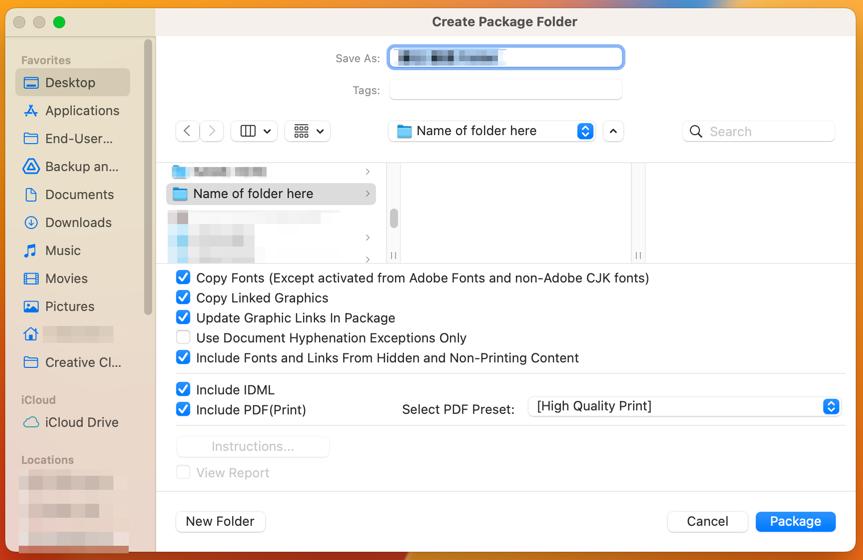
BrandLife’s version control feature
The brand portal gives agency partners and other collaborators a branded place to download approved files, and you control who can reach it.
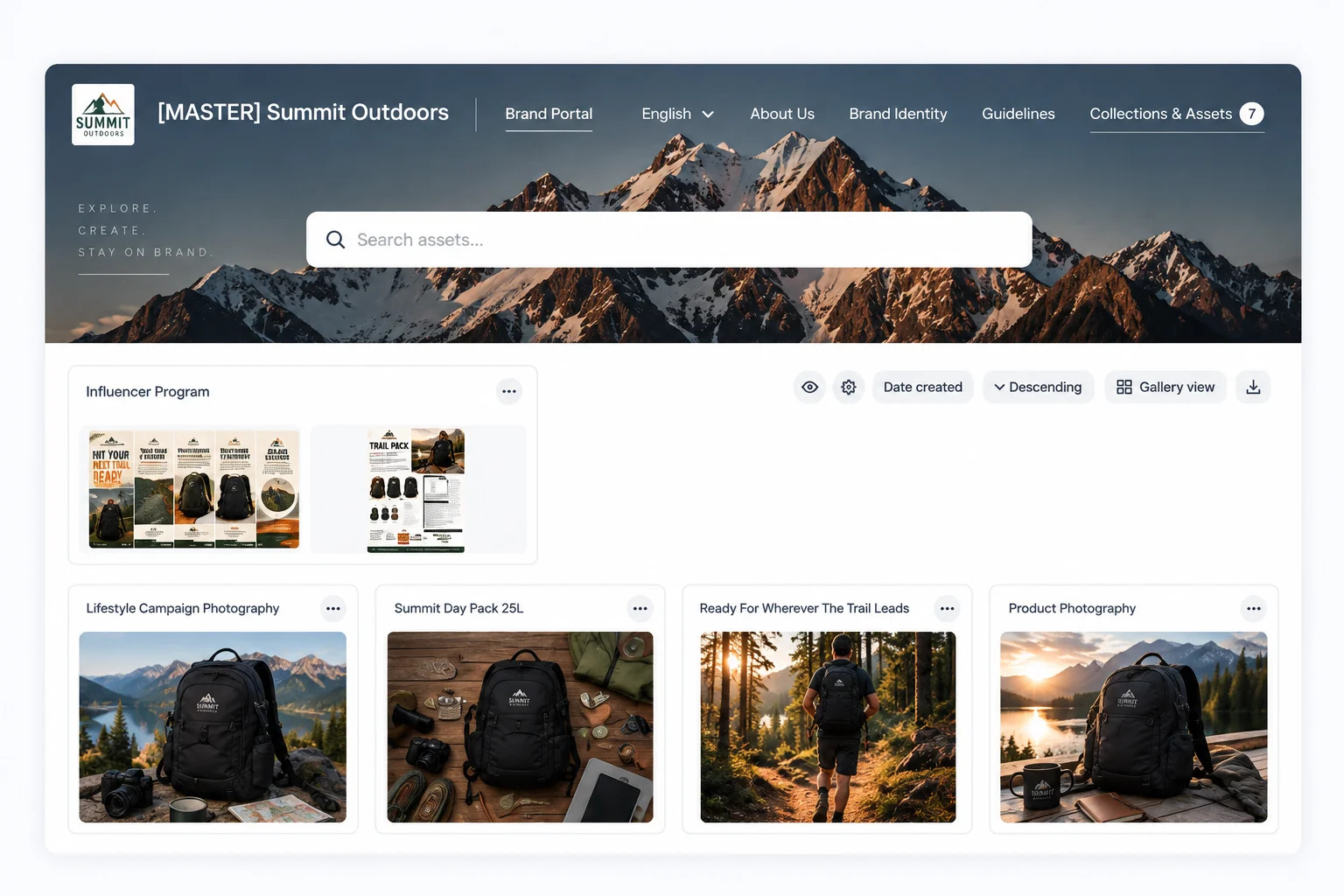
Sharing approved packages through BrandLife
Want to see how your packages, PDFs and partner access would work in one approved library? Book a walkthrough, and the BrandLife team will show you version control and the brand portal with your own files. The Starter plan is $150/month, and Enterprise pricing is custom.
Book a BrandLife demo for your print and agency files.
Frequently Asked Questions
- Does packaging an InDesign file include fonts?
Yes, with one exception. Copy Fonts adds the document’s font files, except fonts activated from Adobe Fonts and non-Adobe CJK fonts. Recipients need their own Adobe Fonts access to edit with those, and any other font should be checked against its license before you send it.
- Should I send the printer the package or a PDF?
Send the PDF your printer specifies, unless they ask for native files. A full package helps when the printer needs to make fixes, so ask before you send either one.
- What is the IDML file in an InDesign package?
IDML stands for InDesign Markup Language, an interchange file. The Package dialog can add one for backward compatibility, so someone on an older InDesign version can still open the layout.
- Why are images missing after I package an InDesign file?
Usually because Update Graphic Links In Package wasn’t selected, or the images were already missing before packaging. Fix every Missing link in the Links panel, select both Copy Linked Graphics and Update Graphic Links In Package, then package again.
- How do I send a large InDesign package?
Zip the package folder first, then share it through a cloud link or your asset library instead of email. Tell the recipient which version it is and who to contact with questions.