Key Takeaways
- Choose by the shape of the finished piece. Start in InDesign when the job has several pages or a lot of text, and in Photoshop when one image needs pixel edits.
- Use InDesign for anything that repeats across pages. Parent pages and paragraph styles keep footers, logos and type identical from the first page to the last.
- Use Photoshop for retouching and single-image creative. It edits individual pixels, which suits product photos, composites and social graphics.
- Keep the master logo out of both apps. Logos belong in vector files, usually built in Illustrator, because pixel-based images blur when they’re enlarged.
- Store approved finals from both apps in BrandLife. BrandLife is a DAM with version history on every file, and its integrations page lists both Photoshop and InDesign.
Brand content now changes almost as fast as it ships. In Adobe’s August 2026 survey of more than 800 US marketers and creative professionals, marketers said social and email assets are often updated at least weekly. Every update means new files, and each one has to start in the right app.
Pick the wrong app and the cost shows up later. A product catalog built in Photoshop turns every price change into a designer task, and a logo pulled from a social graphic goes soft once someone stretches it across a trade show banner.
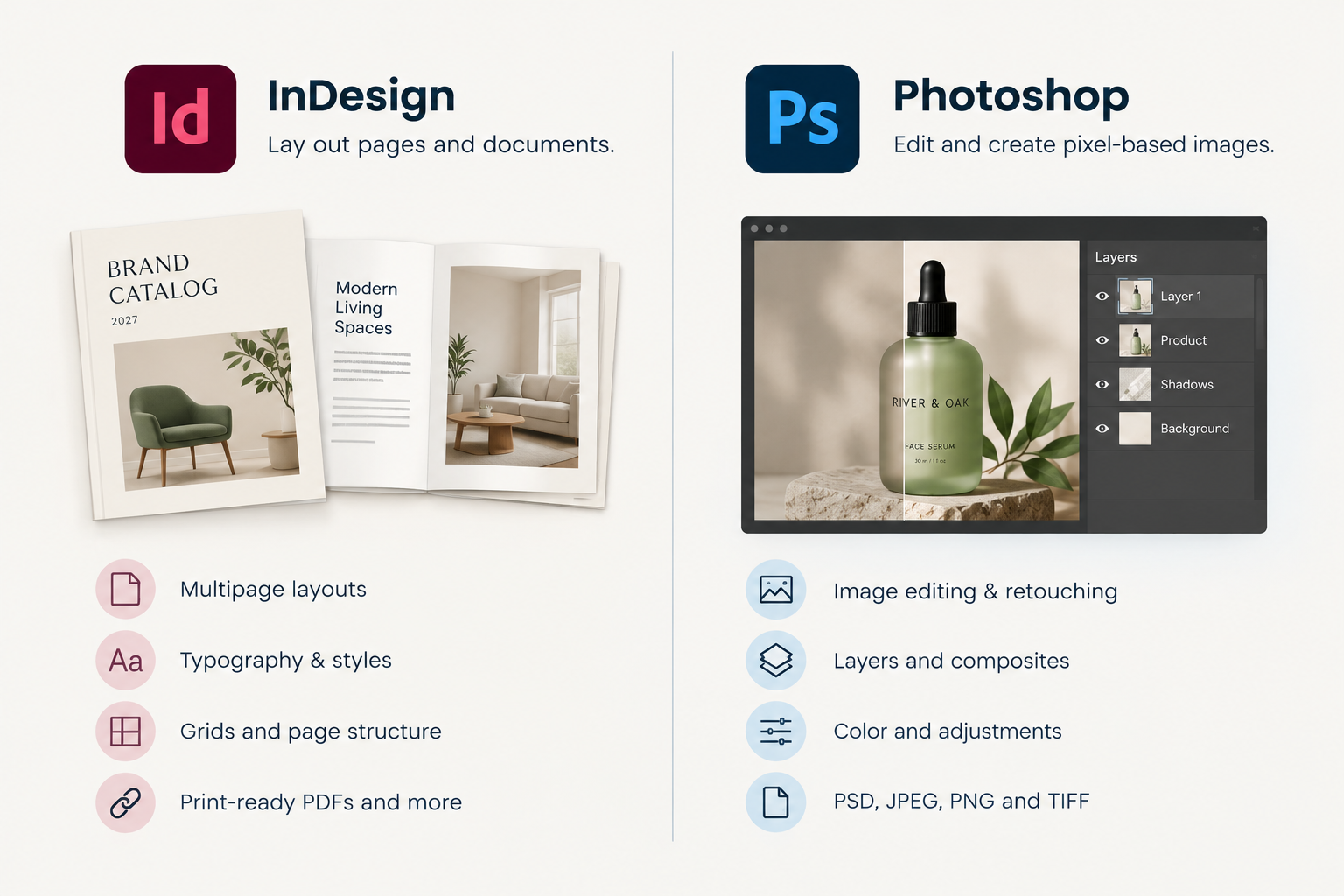
InDesign vs Photoshop comes down to the job in front of you. InDesign is a layout app for pages that combine text and images, while Photoshop is an image editor for changing pixels. Most brand teams need both, with Photoshop preparing images and InDesign assembling them into finished pages. Below, you’ll find a one-question test for choosing, a side-by-side comparison and a guide to which brand jobs belong in each app.
Should You Use InDesign or Photoshop?
Choose by the shape of the finished piece rather than the app your designer likes best. Ask one question. Does the finished piece have multiple pages or more text than a short headline? If yes, start in InDesign. If it’s a single image that needs changes to its pixels, start in Photoshop.
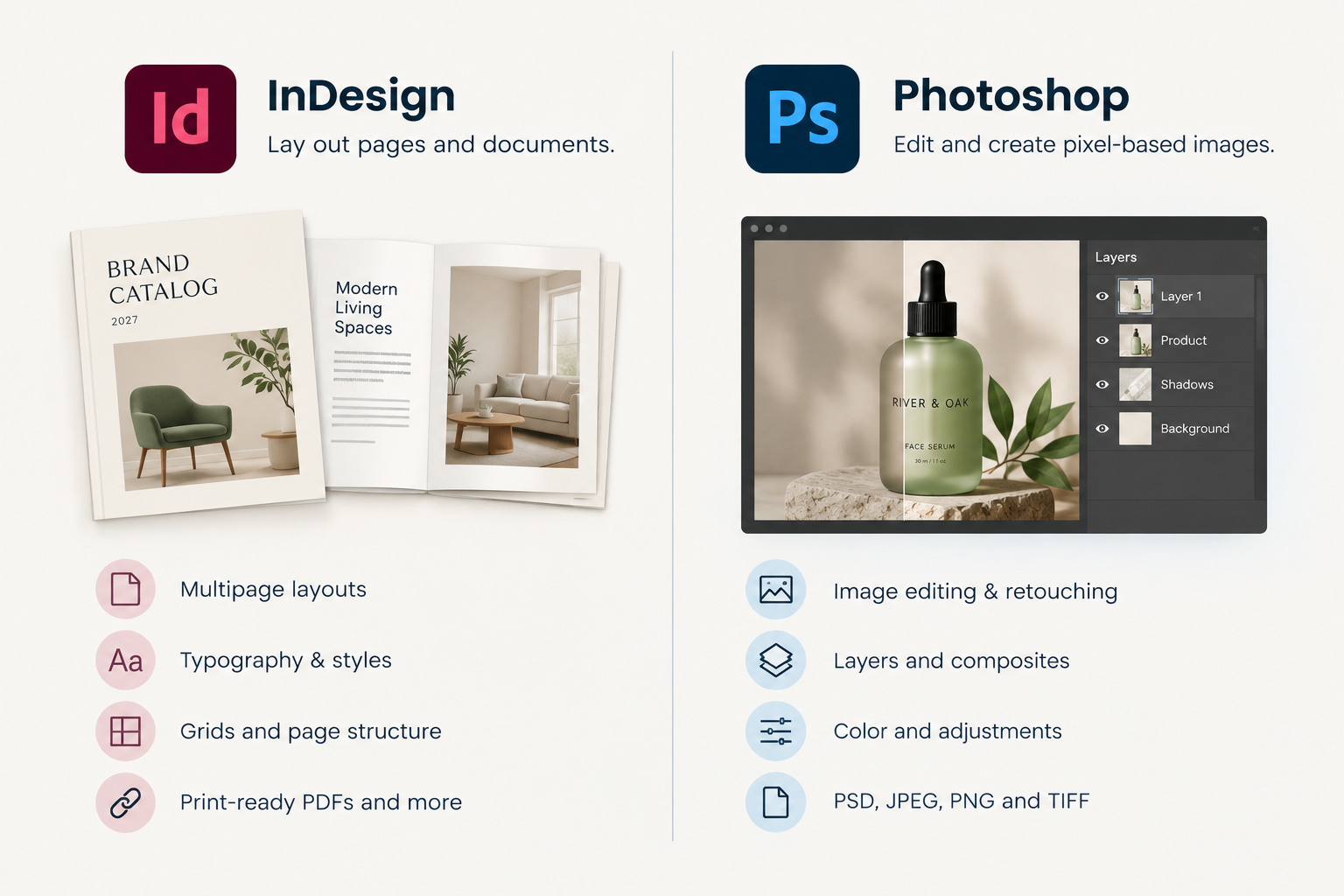
Adobe’s own descriptions line up with this test. Its Illustrator vs InDesign guide calls InDesign “a desktop publishing and layout application for creating books, magazines, and brochures,” and Adobe’s guide to PSD files describes Photoshop as the app for editing layered, high-resolution images.
Logos and icons are a third case. They’re usually vector files, which resize cleanly at any size, while the pixel-based images Photoshop edits blur when scaled up too far. Keep the master logo as a vector file, usually built in Illustrator, and place it into InDesign or Photoshop whenever a piece needs it. Our comparison of InDesign vs Illustrator covers that side of the decision.
| Takeaway Pages and paragraphs go to InDesign. Pixels go to Photoshop. Logos go to neither, so keep them as vector masters. |
|---|
InDesign vs Photoshop Comparison
Both apps can put text on an image, which is where the confusion starts. Past that, they’re built for different work.
| Area | InDesign | Photoshop |
|---|---|---|
| Primary job | Lay out pages and documents | Edit and create pixel-based images |
| Page structure | Real pages, margins, columns and parent pages | A single canvas built from layers |
| Text | Paragraph styles and text that flows across pages | Headlines, price callouts and short taglines |
| Images | Places, frames and links images made elsewhere | Retouches, composites and adjusts pixels |
| Native file | INDD | PSD |
| Typical output | Print-ready PDF, interactive PDF, packaged folders | PSD, JPEG, PNG and TIFF for print or web |
| Best for | Catalogs, brochures, reports, brand guidelines | Product photos, social graphics, web banners |
How Do InDesign and Photoshop Handle Page Layout?
InDesign was built for page layout, and Photoshop was built for images. That gap grows with every page you add.
An InDesign document has real pages, with margins and columns you set once. A parent page, called a master page before InDesign 2022, works as a reusable template, so items placed on it, such as the footer, logo and page numbers, appear on every page that uses it. Edit the parent and every connected page updates. For brand teams, that’s a built-in consistency control, since the footer and logo position stay the same across a 40-page catalog without anyone checking each page by hand.
Type works the same way. Paragraph styles define how headings and body copy look once, and you apply them across the whole document, so spacing and type stay consistent from start to finish. Text also flows through linked frames across pages, so a copy edit on page 3 reflows the pages after it without a designer rebuilding each one.
Photoshop works on a canvas built from layers. Its type tools handle a headline, a price callout or a short tagline well, but it has no parent pages, and text doesn’t flow from one page to the next. There’s a practical cost too. Adobe notes that you need Photoshop to edit an original PSD, so every text change in a Photoshop layout has to go back to someone with Photoshop.
| Takeaway If a piece will get a second edition, build it in InDesign. Price changes and copy updates take minutes in a styled layout and hours in a flattened image. |
|---|
How Do InDesign and Photoshop Compare for Image Editing?
Photoshop is the clear choice for image work. InDesign places and frames images, while Photoshop changes what’s inside them.
A PSD, Photoshop’s native file, stores layers and high-resolution image data. Adobe’s PSD guide says a PSD can reach 30,000 pixels in height and width, with files running up to two gigabytes, which leaves plenty of room for detailed retouching and compositing. That’s why product photography, lifestyle composites and background removal all belong in Photoshop.
InDesign handles images differently. It places a photo inside a frame, lets you crop and position it on the page and keeps a link back to the original file rather than copying it in. It can’t retouch, color-correct or remove a background, so those edits happen in Photoshop before the image lands in the layout.
| Takeaway InDesign decides where an image goes. Photoshop decides what the image looks like. Keep each app to its half of the job. |
|---|
Which Tool Should Brand Teams Use for Each Job?
Here’s how common brand-team work splits between the two apps.
| Brand-team job | Best tool | Why |
|---|---|---|
| Product catalog | InDesign | Many pages, repeated layouts and frequent price changes |
| Sales brochure or one-pager | InDesign | Text, images and brand styles on a set grid |
| Brand guidelines document | InDesign | Long document with consistent styles throughout |
| Annual or impact report | InDesign | Flowing text across dozens of pages |
| Product photo retouching | Photoshop | Pixel-level edits to color, lighting and backgrounds |
| Social media graphic | Photoshop | Single image with a short headline |
| Web banner or display ad | Photoshop | One canvas exported to web formats |
| Composite or lifestyle image | Photoshop | Layers and masks that blend several photos |
| Logo or icon | Neither, use Illustrator | Must stay vector to scale cleanly |
The pattern holds across most brand work. Anything people read across several pages belongs in InDesign, anything that’s mainly one image belongs in Photoshop and anything that must scale to every size belongs in a vector file.
| Takeaway A social graphic with three lines of copy is still a Photoshop job. A one-page flyer with paragraphs of text is an InDesign job, even though it’s only one page. |
|---|
How to Use InDesign and Photoshop Together
Most brand pieces use both apps, so the way files move between them matters as much as the tool choice.
Finish the image in Photoshop and save the layered PSD as the master. Place it into InDesign as a linked file rather than pasting it, so the layout points back to the source. When someone saves a new edit to the PSD, InDesign’s Links panel flags it as Modified, and you can update every layout that uses it in one pass. InDesign can also show or hide individual PSD layers through Object Layer Options, which helps when one image needs a version with and without a price badge.
Keep exports organized too. Use the layered PSD or a high-resolution TIFF for print layouts, and JPEG or PNG for web and social. Before a finished layout goes to a printer or agency, run InDesign’s Package command so fonts and linked images travel with it. Our guide to InDesign file management covers links, folders and packaging in more depth.
| Step | Where it happens | What to keep |
|---|---|---|
| Edit the image | Photoshop | The layered PSD master |
| Place in a layout | InDesign | A linked PSD, not a pasted copy |
| Update the image | Photoshop, then InDesign | A new PSD save, refreshed in the Links panel |
| Finish the document | InDesign | The INDD file and a print or interactive PDF |
| Share or print | InDesign | A packaged folder with fonts and links |
| Takeaway Link, never paste. A linked PSD updates everywhere it’s used, while a pasted one becomes a copy that nobody remembers to fix. |
|---|
Keep Approved Files From Both Apps in BrandLife
BrandLife is a DAM built for growing and multi-brand teams. It isn’t a design tool and doesn’t replace InDesign or Photoshop. Instead, it’s the approved library that holds what those apps produce, so marketers, sales teams and partners always find the current catalog, social graphic or product photo without asking a designer.
Store retouched product photos, final social and web creative, print-ready PDFs and packaged layouts in BrandLife, while designers keep their working PSD and INDD files in the synced storage they already use. Version control tracks every update and marks the latest approved version, so a new export replaces the old one without losing its history.
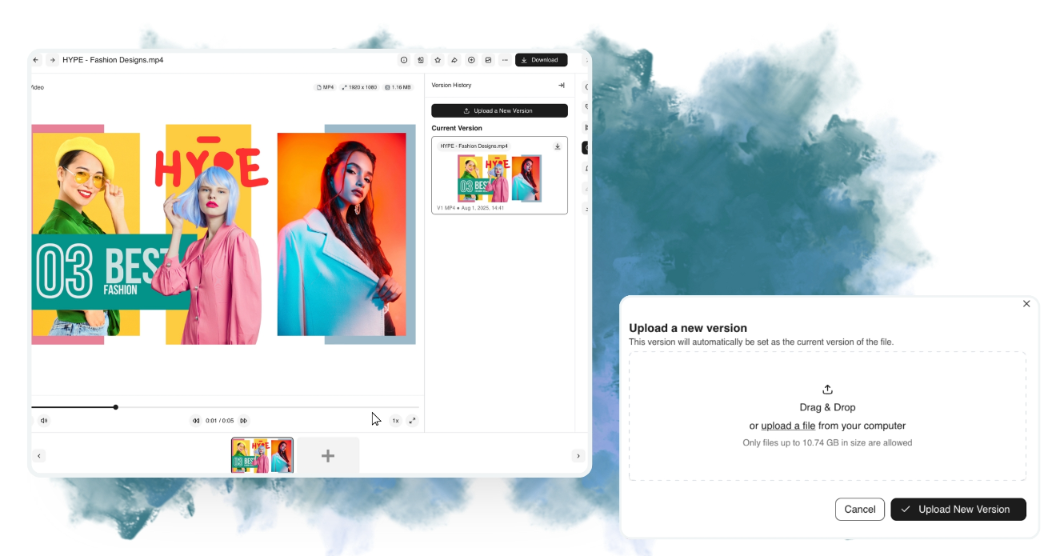
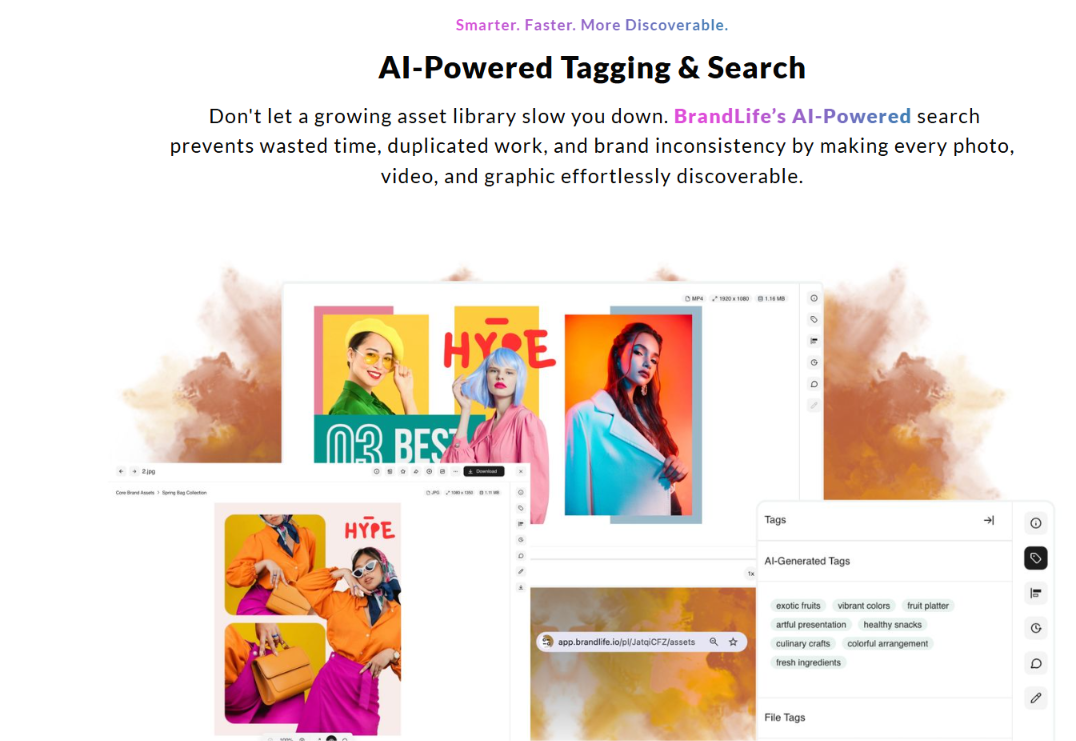
AI tagging makes images searchable by what they show, and interactive brand guidelines sit right next to the assets they govern.
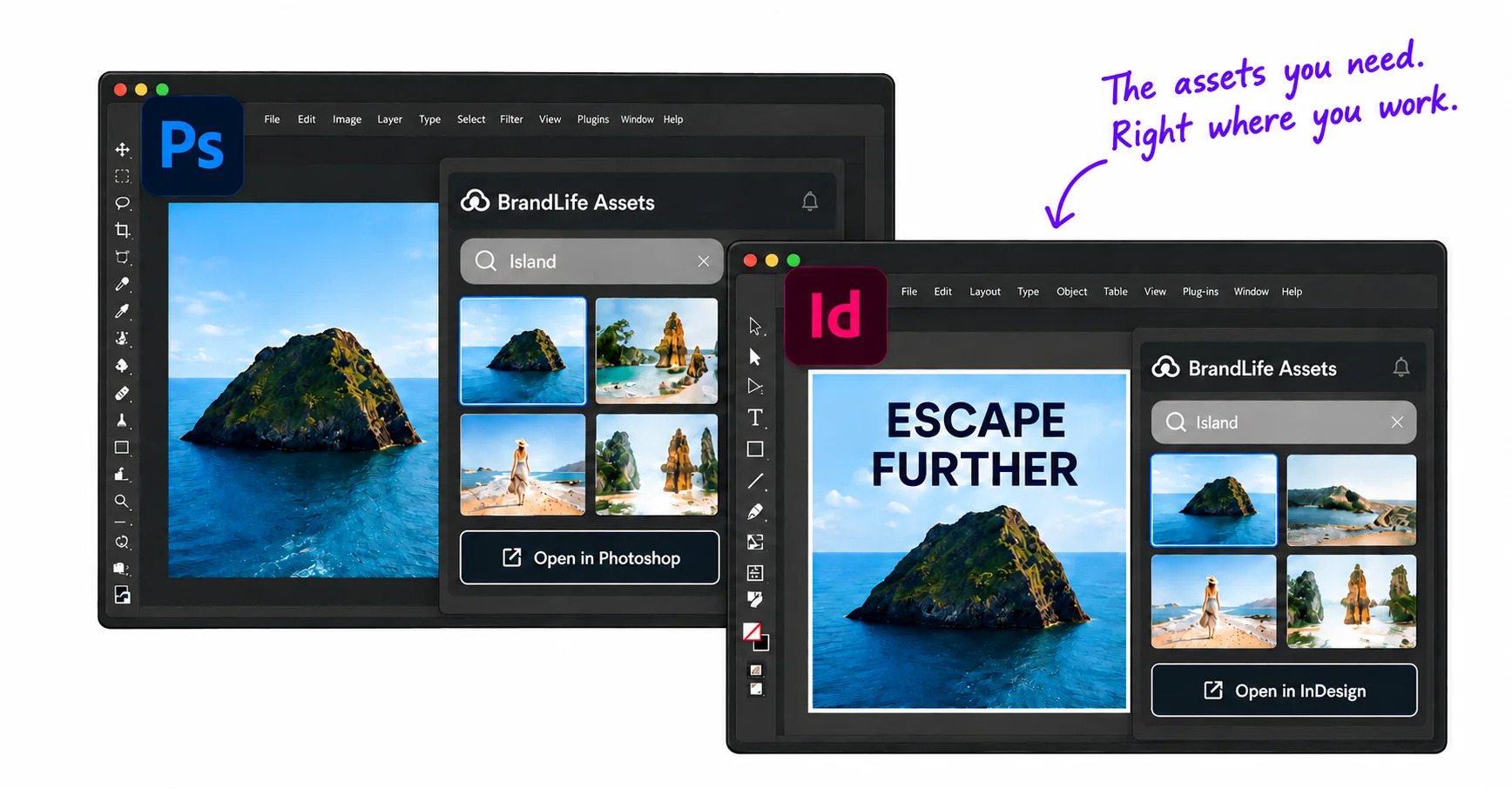
BrandLife’s integrations page lists both Photoshop and InDesign, so designers can reach approved brand assets from the apps they already work in.
Want to see how your product photos, catalogs and social creative would look in one approved library? Book a walkthrough, and the BrandLife team will show you how version control, AI tagging and brand guidelines work with your own files. The Starter plan is $150/month, and Enterprise pricing is custom.
Book a BrandLife demo for your creative team.
Frequently Asked Questions
Can you make a brochure in Photoshop?
You can, but it’s slow to build and hard to update. Photoshop has no parent pages or flowing text, so every copy change means editing the image by hand. InDesign is the better choice for brochures, with Photoshop preparing the images inside them.
Can InDesign edit photos?
InDesign can crop, frame and position photos on a page, but it can’t retouch them, adjust their colors or remove backgrounds. Make those edits in Photoshop, then place the finished image into InDesign as a linked file.
Should I design a logo in Photoshop?
No. Photoshop creates pixel-based images that blur when they’re enlarged. Build logos as vector files, usually in Illustrator, so they stay sharp from a favicon to a billboard.
What file format should I use to place Photoshop images in InDesign?
For print layouts, place the layered PSD or a high-resolution TIFF as a linked file. For web and social pieces exported from InDesign, JPEG or PNG versions of the image work well. Keep the PSD as the master either way.
Do brand teams need both InDesign and Photoshop?
Most brand teams do, because they produce both multipage documents and image-led creative. Teams that mainly make social and web graphics may lean on Photoshop, while teams that mainly produce catalogs and reports lean on InDesign.