Key Takeaways
- Let the output decide the tool. Use Illustrator to create graphics that get reused at many sizes, and InDesign to lay out pages that combine text and images.
- Start every logo in Illustrator. Vector files scale from a business card to a billboard without blurring, which pixel-based files can’t do.
- Use InDesign for anything with real text or several pages. Grids, parent pages and paragraph styles keep long documents consistent and easy to update.
- Plan for both apps on most projects. Illustrator makes the parts, InDesign assembles them, and linked graphics let one logo update flow into every layout.
- Keep approved exports in BrandLife. BrandLife is a DAM that stores the final logos, PDFs and packaged layouts both apps produce, with version history on every file, while designers keep native files where they work.
Brand teams lean on a shrinking pool of designers. The US Bureau of Labor Statistics Occupational Outlook for graphic designers counts about 253,100 jobs in 2025 and projects a 2% decline in employment from 2025 to 2035. Self-employed workers make up 20% of the field.
That mix shapes how brand files travel. An in-house designer builds the logo, a freelancer lays out the sales brochure and an agency adapts both for a trade show. If each person picks a different tool for the same job, the files stop fitting together.
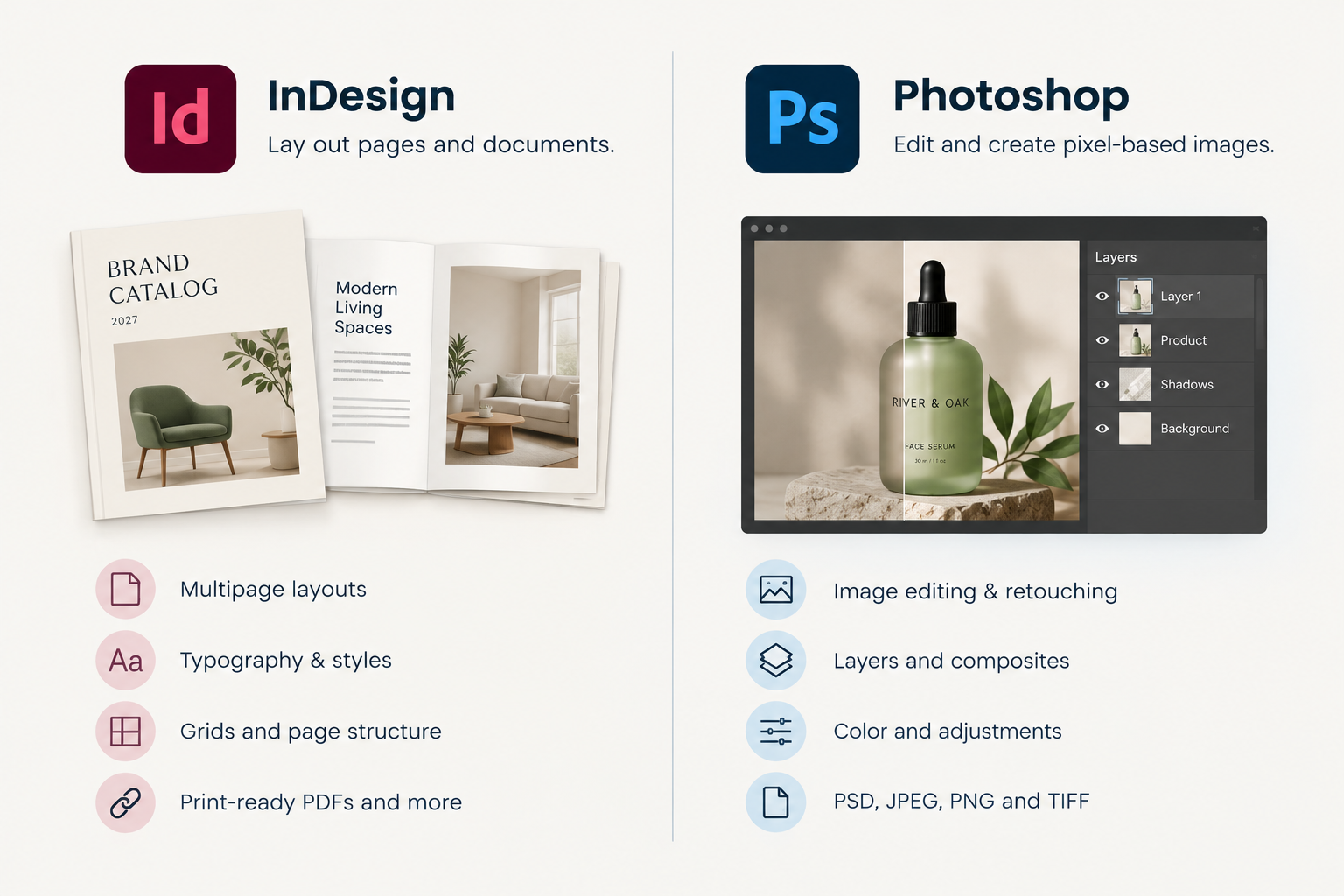
Illustrator and InDesign split the work cleanly. Illustrator creates the graphics a brand reuses everywhere, such as logos, icons and charts, and InDesign lays out the pages those graphics end up on, from one-pagers to 100-page reports. Most brand teams need both, with Illustrator graphics placed inside InDesign layouts. Below, you’ll see how the two apps compare, which brand jobs belong in each one and how to keep the files they produce under control.
Should You Use InDesign or Illustrator?
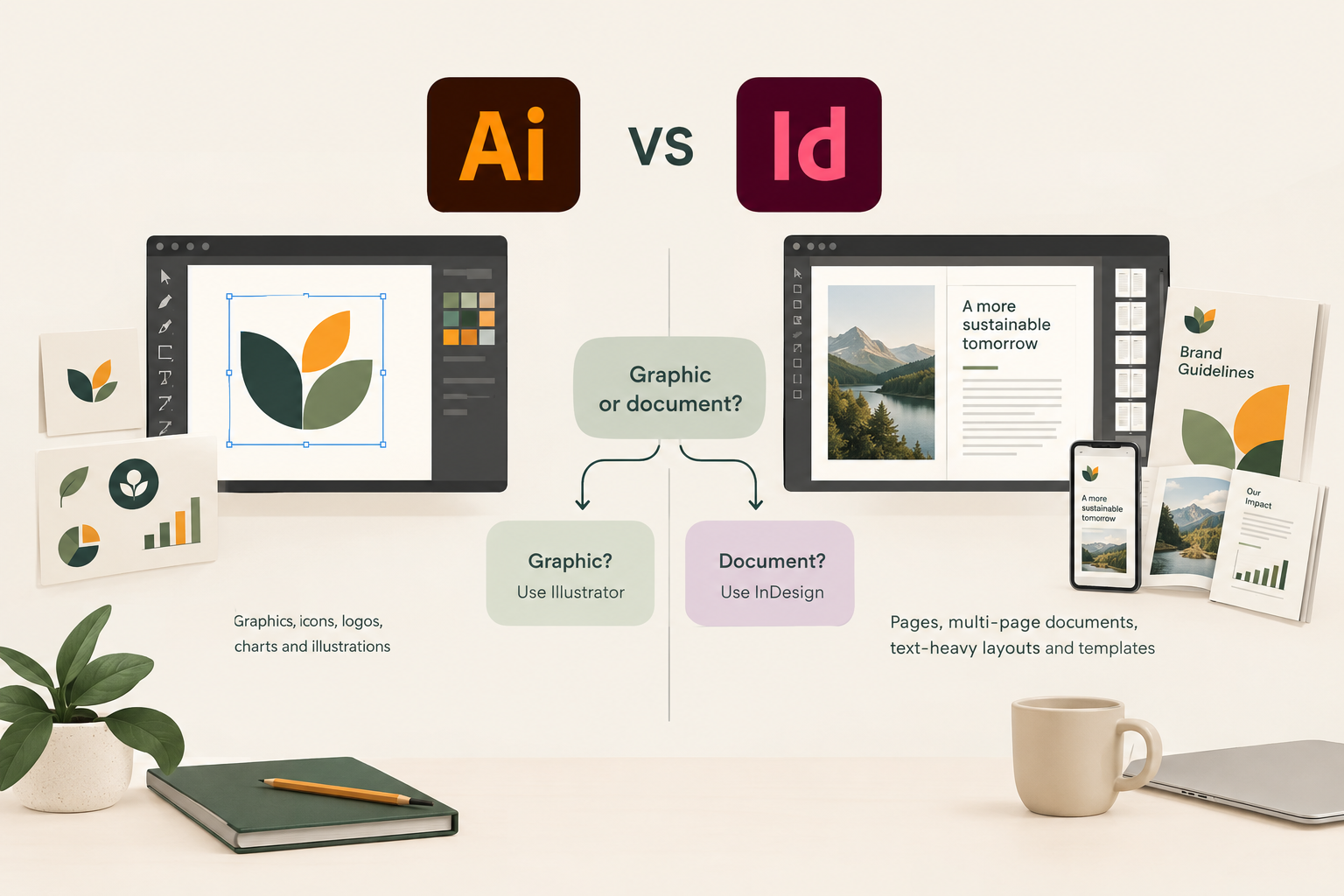
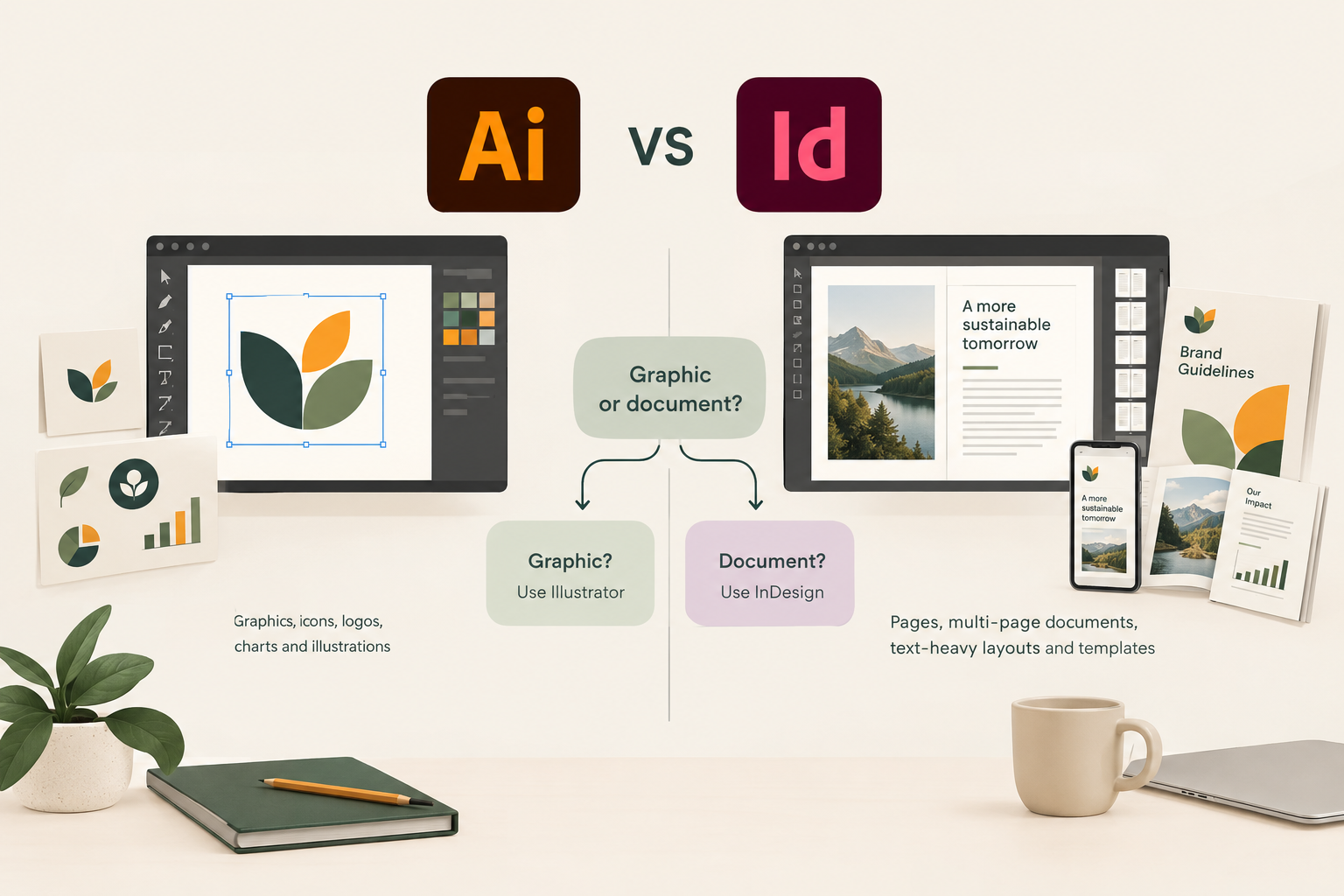
Pick the tool by asking what you’re making. If the answer is a single graphic that will be reused at many sizes, open Illustrator. If the answer is a page or a document, open InDesign.
Adobe’s own comparison of Illustrator vs InDesign draws the same line. It calls Illustrator “a graphic design and illustration application for creating vector images” and InDesign “a desktop publishing and layout application for creating books, magazines, and brochures.”
A few quick rules cover most brand-team decisions.
Making a logo, icon or chart? Use Illustrator.
Making anything with several pages? Use InDesign.
Working with lots of body text? Use InDesign, even on a single page.
Building a reusable template? Use InDesign for documents and Illustrator for the graphic elements inside them.
Still not sure? Start with the output, since documents go to InDesign and graphics go to Illustrator.
| Takeaway If it will be reused at different sizes, build it in Illustrator. If people will read it from top to bottom, lay it out in InDesign. |
|---|
InDesign vs Illustrator Comparison
The two apps overlap a little, since both can place text and images. Past that, they’re built for different work.
| Area | Illustrator | InDesign |
|---|---|---|
| Primary job | Create vector graphics and illustrations | Lay out pages and documents |
| Layout | Single designs, posters, one-page flyers | Grids, parent pages, multipage documents |
| Vector illustration | Core strength for logos, icons, charts, patterns | Basic shapes only; places graphics made elsewhere |
| Typography | Custom lettering and type in logos | Paragraph and character styles across long text |
| Collaboration | Share for Review comments; Invite to Edit | Share for Review links; linked graphics update across layouts |
| Native file | AI | INDD |
| Typical output | SVG, EPS, PDF, PNG for reuse | Print-ready PDF, interactive PDF, packaged folders |
InDesign is built for page structure. Adobe points to its customizable grids and guides, and to parent pages (called master pages before InDesign 2022) for templates reused across sections and publications. Paragraph styles keep type consistent from headline to footnote, which makes InDesign the safer choice for anything a team will update and reprint. Illustrator can handle a poster or a one-page flyer, but once a project runs past a page or two, managing text flow by hand gets slow.
Illustrator works in vectors, which Adobe describes as graphics “based on mathematical formulas.” Vectors scale without losing detail, so the same logo fits a business card or a billboard, while pixel-based images blur when enlarged too far. That’s why logos, icons and charts should start in Illustrator.
Both apps let you share files for review. Illustrator offers Share for Review for comments and Invite to Edit for co-editing, and InDesign offers review links of its own. InDesign’s bigger collaboration strength is linking. A layout links to placed graphics instead of copying them in, so an updated logo can flow into every document that uses it.
Output follows the same split. Illustrator exports graphics for reuse elsewhere, commonly as SVG, EPS, PDF or PNG. InDesign exports finished documents, most often as print-ready or interactive PDFs, and it can package a layout with its fonts and linked files for a printer or agency.
| Takeaway: Linked graphics are InDesign’s quiet superpower. Place logos as links rather than pasting them in, and a logo update becomes a five-minute job instead of a weekend. |
|---|
Which Tool Should Brand Teams Use for Each Job?
Here’s how common brand-team work splits between the two apps.
| Brand-team job | Best tool | Why |
|---|---|---|
| Logo and logo variations | Illustrator | Must scale cleanly at every size |
| Icon set | Illustrator | Consistent vector shapes reused everywhere |
| Charts and infographic elements | Illustrator | Precise vector shapes that drop into any layout |
| Packaging dielines and labels | Illustrator | Vector artwork built to exact print measurements |
| Poster or single-page flyer | Either | Illustrator for graphic-led designs, InDesign for text-led ones |
| Sales brochure or one-pager | InDesign | Text, images and brand styles on a set grid |
| Annual report or catalog | InDesign | Long documents with parent pages and styles |
| Brand guidelines document | InDesign | Many pages of rules, examples and placed logos |
| Reusable templates for teams | InDesign | Locked layouts that others can update safely |
The pattern is consistent. Anything that becomes a building block starts in Illustrator, and anything that combines building blocks with text ends up in InDesign. Posters and single-page flyers are the one real gray area, so let the balance of text and graphics decide.
| Takeaway Illustrator makes the parts and InDesign assembles them. When a team mixes those roles, files stop fitting together at the next update. |
|---|
How to Use InDesign and Illustrator Together
Most brand projects use both apps, so the way files move between them matters as much as the tool choice.
Build the graphic in Illustrator and save the native AI file as the master. Place it into InDesign as a linked file rather than pasting it, so the layout points back to the source. When the logo changes, update the AI master, and InDesign’s Links panel flags every layout that uses it so you can refresh them in one pass.
Exports need the same care. Agree on a short list of formats for each use, such as SVG for web, EPS or PDF for print partners and PNG for slides and documents, and export them from the master each time rather than from an old copy. For finished layouts, use InDesign’s Package command before anything goes to a printer or agency, so fonts and linked graphics travel with the file. Our guide to InDesign file management covers folders, links and packaging in more depth.
| Step | Where it happens | What to keep |
|---|---|---|
| Create the graphic | Illustrator | The AI master file |
| Export for reuse | Illustrator | Approved SVG, EPS, PDF and PNG versions |
| Place in a layout | InDesign | A linked graphic, not a pasted copy |
| Finish the document | InDesign | The INDD file and a print or interactive PDF |
| Send to a printer or agency | InDesign | A packaged folder with fonts and links |
| Takeaway Never let anyone place a logo they downloaded from an email or a website. Every placed logo should trace back to one approved master. |
|---|
How to Keep InDesign and Illustrator Files On-Brand
The tool choice matters less than how the files are governed afterward. Most brand problems come from duplicates, not from using the wrong app.
Keep one master per logo and per template, and give each a clear owner. Store approved exports separately from working files, so people outside the design team only ever see finished versions. Name files with the asset, the variant and a date, so nobody has to choose between “logo_final” and “logo_final_v2.” When a master changes, retire the old exports at the same time, so outdated versions don’t keep circulating.
Freelancers and agencies make this more important. With one in five graphic designers self-employed, many brand files are touched by people outside your company. Give them the approved exports and templates they need, ask for native files and packaged folders back at the end of a job and add those to the approved set once they’re signed off.
| Takeaway Designers need native files, and everyone else needs approved exports. Keep those two sets apart, and most off-brand mistakes disappear. |
|---|
Keep Approved Design Exports in BrandLife
BrandLife is a DAM built for growing and multi-brand teams. It isn’t a design tool and doesn’t replace InDesign or Illustrator. Instead, it’s the approved library that holds the files those apps produce, so marketers, sales teams and partners always find the current logo or brochure without asking a designer.
Store final logo exports, icon sets, print-ready PDFs and packaged layouts in BrandLife, while designers keep their working AI and INDD files in the synced storage they already use. Version control tracks every update and marks the latest approved version, so a new logo export replaces the old one without losing its history.
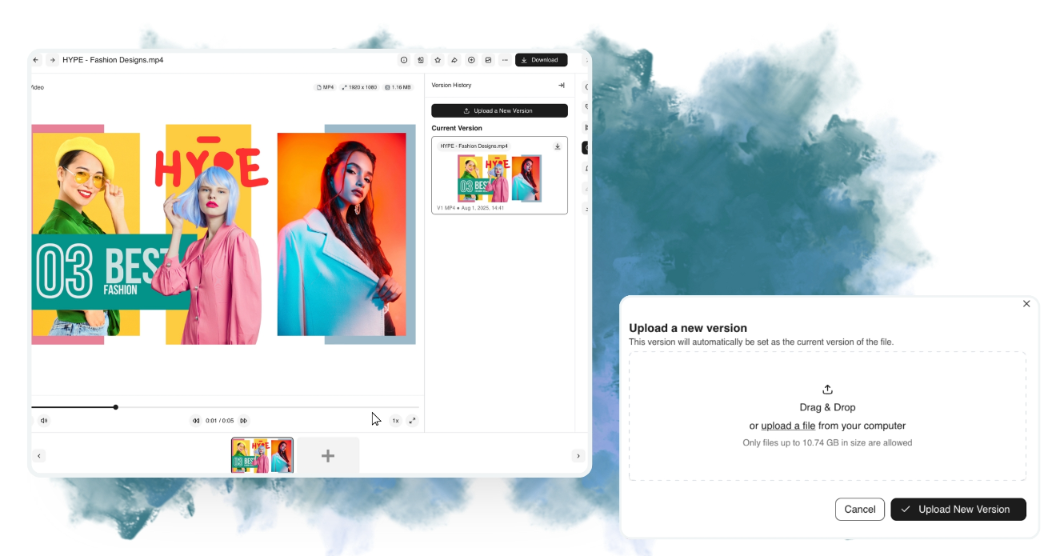
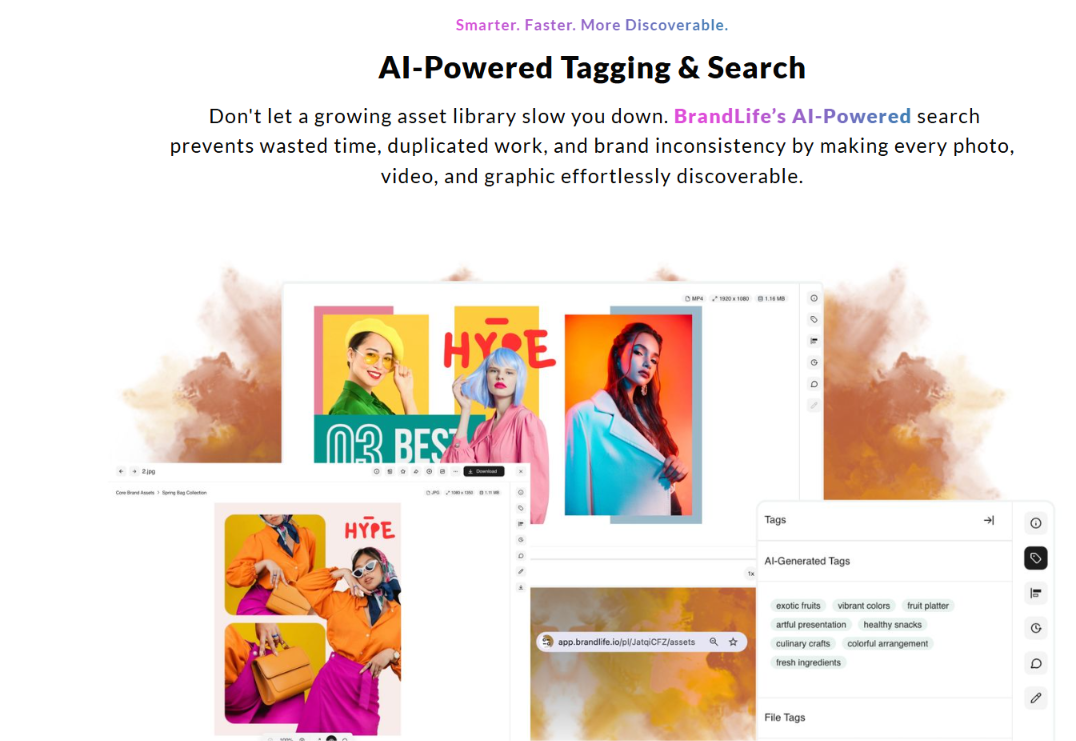
AI tagging makes logos and graphics searchable by what they show, and interactive brand guidelines sit right next to the assets they govern.
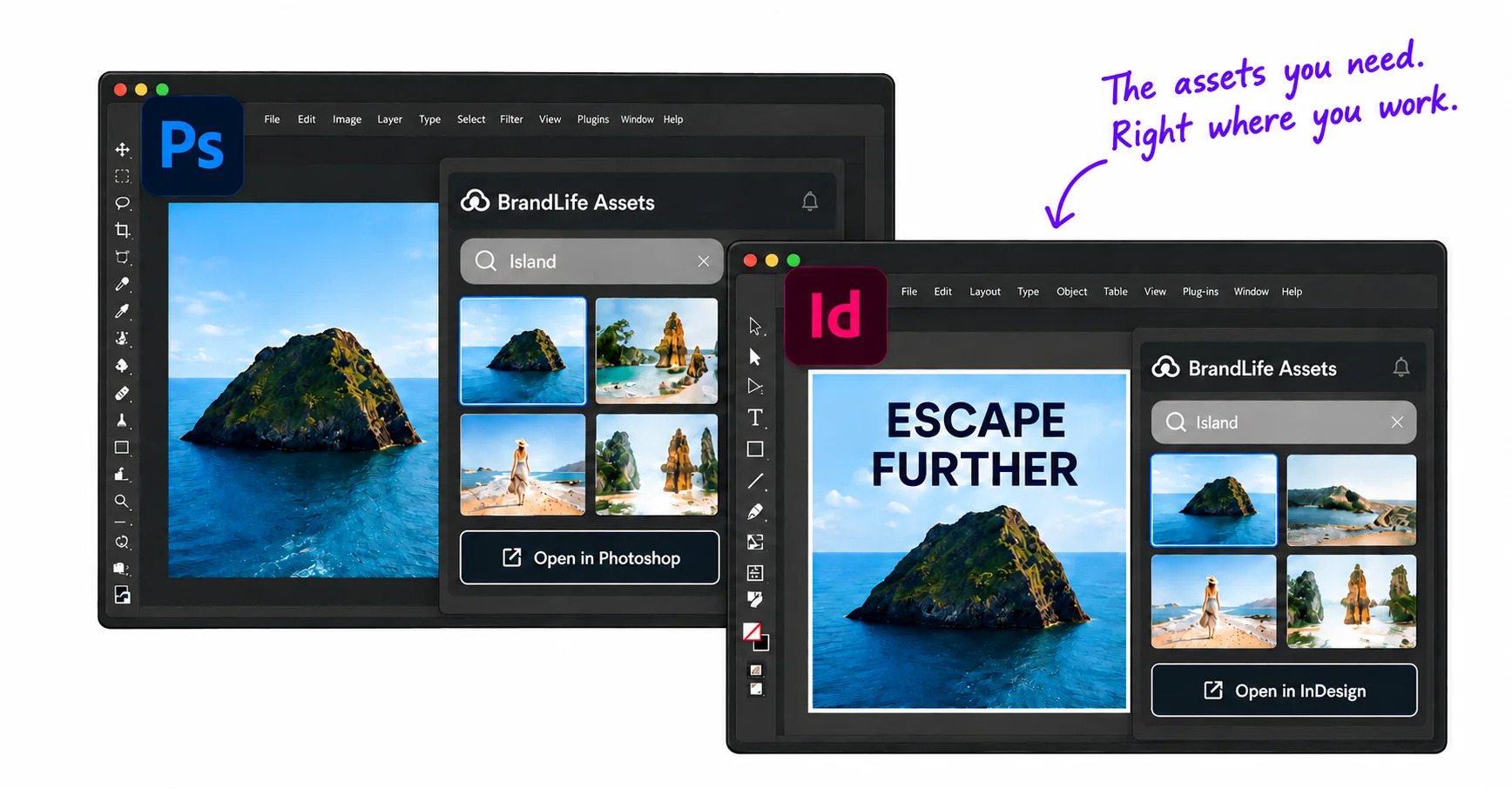
BrandLife’s integrations page lists InDesign for accessing brand assets while building layouts. Illustrator isn’t listed there today, so Illustrator users upload exports directly.
The Starter plan is $150/month, Enterprise pricing is custom, and you can sign up online and upload your first approved logo set the same day.
Book a BrandLife demo for your design team.
Frequently Asked Questions
Can I make a logo in InDesign?
You can draw basic shapes in InDesign, but it isn’t built for logo design. Create logos in Illustrator so they stay vector-based and scale cleanly, then place them into InDesign layouts as linked files.
Is InDesign or Illustrator better for a brochure?
InDesign is usually better for brochures, because it handles grids, multiple pages and consistent text styles. Build the graphics in Illustrator and assemble the brochure in InDesign.
Can InDesign open Illustrator files?
InDesign can place Illustrator AI files directly into a layout as linked graphics. It doesn’t edit them, so changes to the artwork happen in Illustrator and update in the layout through the Links panel.
Do brand teams need both InDesign and Illustrator?
Most brand teams do, because they produce both reusable graphics and multipage documents. Small teams that mostly make logos and social graphics may lean on Illustrator, while teams that mostly produce reports and brochures lean on InDesign.
What file format should I use to share a logo?
Share SVG for websites, EPS or PDF for print partners and PNG with a transparent background for slides and documents. Keep the native AI file as the master and export each format from it.