Key Takeaways
- InDesign file management means keeping each layout organized with the files it depends on. Then any document opens and prints cleanly months later.
- An INDD file stores links to images by file path. Move or rename a linked file and the Links panel flags it missing, which can ruin print output.
- Split every project into working, approved and archive folders. Designers edit while working, and everyone else pulls only from approval.
- Use File > Package before any agency or printer handoff. It copies most fonts but skips those activated from Adobe Fonts, so plan for those separately.
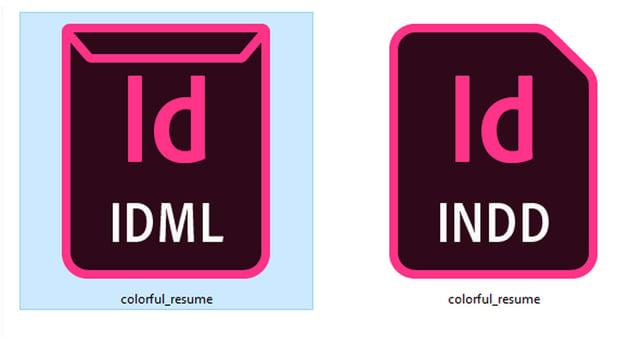
- Save an IDML copy with every final. It opens in InDesign CS4 and later, while an INDD file won't open directly in an older version.
- BrandLife can hold the approved side, with version history on every file and integrations that list InDesign. Working files can stay where your designers edit.
In Microsoft's 2023 Work Trend Index, 62% of 31,000 surveyed workers said they struggle with too much time spent searching for information. For InDesign teams, that search covers more than one file. You're hunting for the layout, plus every image and font it points to.
A sales lead asks for last spring's brochure with one price changed. The designer who built it has left. The INDD file opens with 14 missing links and two fonts nobody can find.
InDesign file management is how a team keeps layouts and everything they depend on organized, so files stay usable after the project ends.
InDesign File Types and the Linked-File Problem
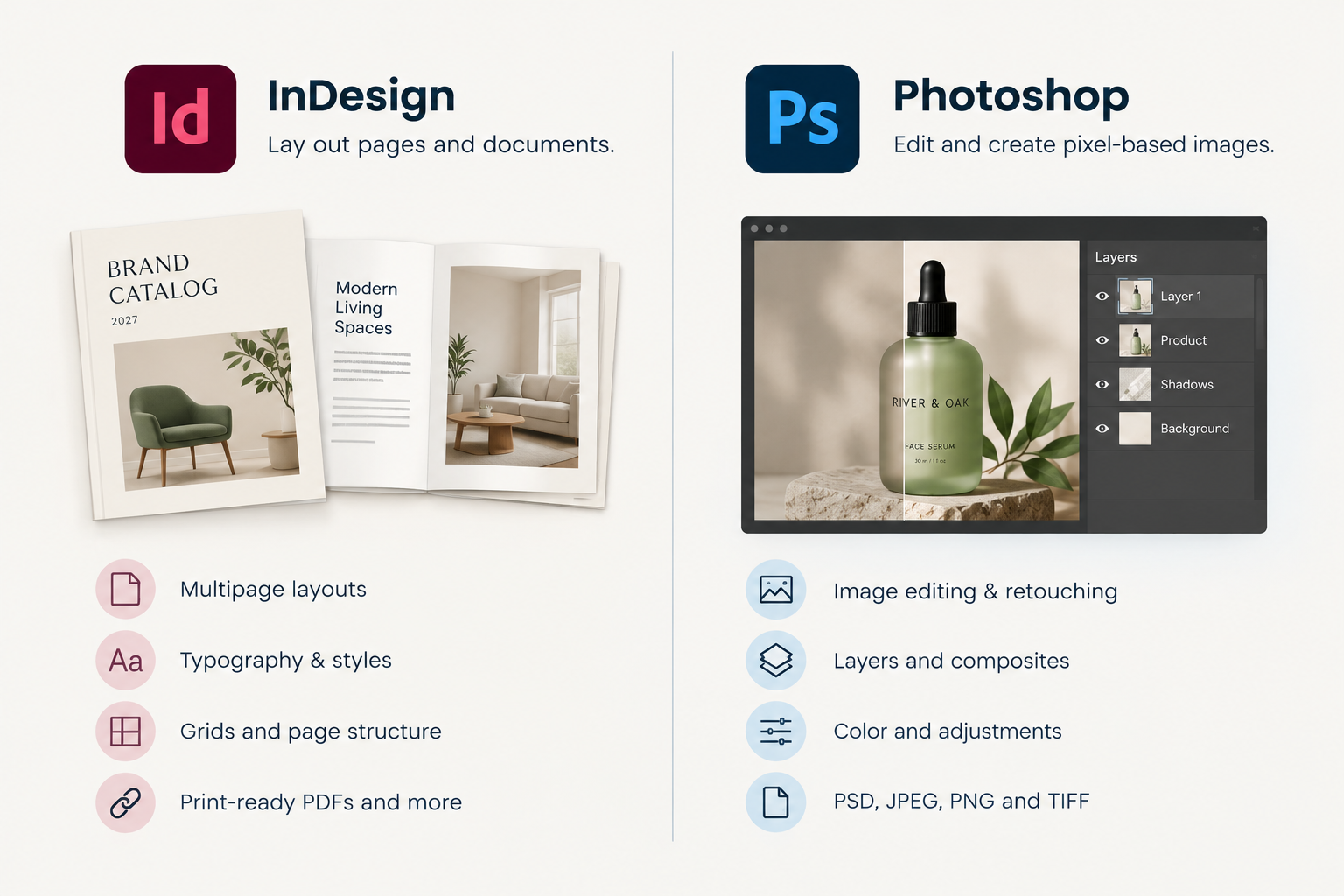
InDesign uses several native file types, and each one has a different job. Knowing which is which tells you what to share and what to archive.
| Extension | What it is | Where it belongs |
|---|---|---|
| INDD | The working layout document | Working folder; final copy in the package |
| INDT | A reusable design template | Approved templates folder |
| IDML | InDesign Markup Language, an interchange file for older versions | Saved with every final, beside the INDD |
| INDB | A book file that groups several INDD documents | Working folder for long documents |
| INDL | A library of reusable objects | Shared approved folder |
| The exported output for print or screen | Approved folder |
The extensions above match Adobe's list of supported InDesign file formats. Adobe lists INDD as the standard working file and INDT as the reusable design template. Books and libraries are saved from their own panels, not from Save As.
Why linked files break
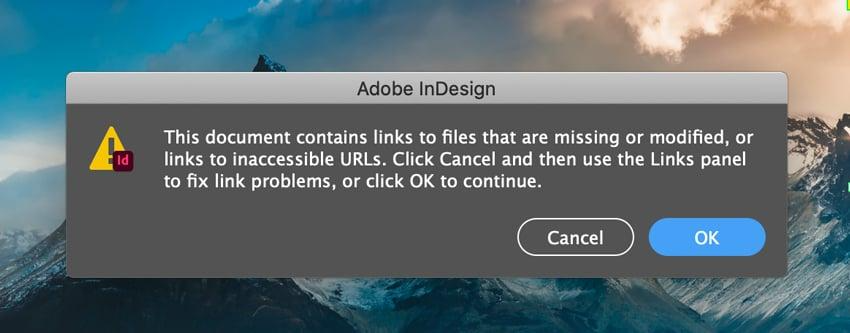
An INDD file usually doesn't contain your images. It contains a path to each one. Adobe's Links panel overview explains that linked files stay independent and connect to the layout by file path. That keeps documents small, but it makes them fragile.
The Links panel shows two warnings worth learning. Modified means someone edited and saved the original image after it was placed. Missing means InDesign can't find the file at its original path. Adobe lists the usual causes such as a moved or renamed file, or a network drive that's no longer connected.
Missing links aren't cosmetic. Adobe warns that a layout with missing links can export at lower resolution, or fail to output at all. A shared drive where anyone can tidy folders breaks them easily.
Embedding solves the path problem by copying the image into the INDD. The trade-off is file size. Embedded images also stop updating when the source changes. Link by default and embed only by exception.
InDesign File Management Structure
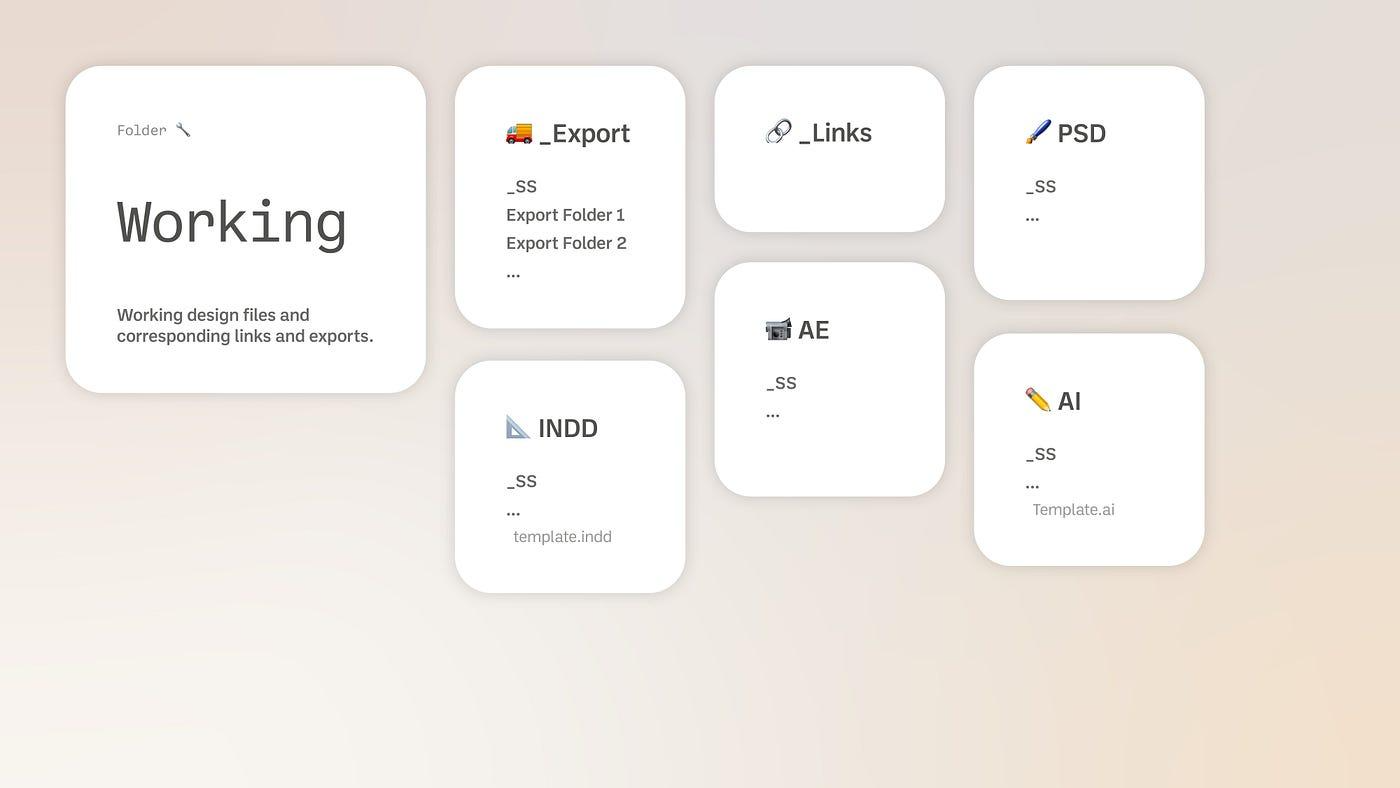
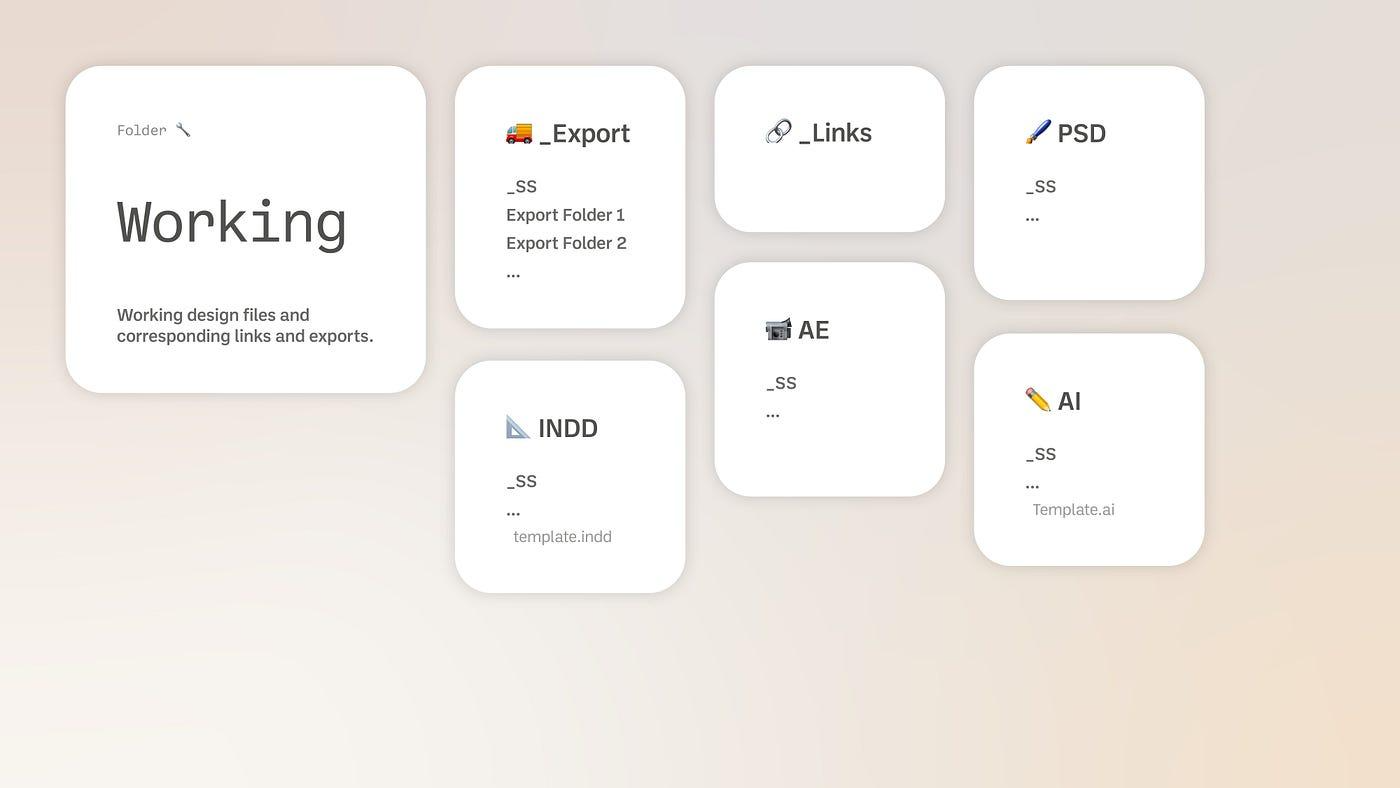
The fix for most InDesign file problems is a folder structure that matches how files move. Work in progress stays in one zone. Signed-off output lives in another. Old versions sit in a third, out of the way but recoverable.
The three zones
Working: The live INDD, its Links folder and draft exports. Only the design team edits here.
Approved: Final PDFs, the final packaged folder and approved templates. Everyone else pulls from here and nowhere else.
Archive: Superseded versions and past campaign packages. Read-only, kept for reference and reprints.
| A simple project tree looks like this: Spring-Brochure-2027/ 01_Working/ Spring-Brochure-2027_v07.indd Links/ Drafts/ 02_Approved/ Spring-Brochure-2027_FINAL_2026-10-20.pdf Spring-Brochure-2027_FINAL_Package/ 03_Archive/ Spring-Brochure-2027_v01-v06/ |
|---|
Keep the Links folder next to the INDD inside the project. When the whole project folder moves, the links move with it. Images scattered across personal desktops are where missing links start.
Naming rules that survive handoffs
Pick one naming pattern and write it down. A useful pattern starts with the project and piece name. Version and date follow, separated by underscores. Avoid words like "final" or "new" without a version or date beside them. Two files called "final" will exist within a week.
Version numbers belong in the working zone. The approved zone needs dates and a clear FINAL label, since nobody outside the design team should choose between v06 and v07. For the wider system behind this, see this guide to a scalable DAM workflow.
Who moves files between zones
Name one owner per project for promotions to approve. When a file is signed off, that person exports the PDF and runs Package. They move both into approved, then archive the earlier versions. A single owner stops three people from promoting three slightly different finals.
Fonts, Links, Versions and Package Folders
These four elements need a rule your team follows on every project, even when the job feels urgent.
Fonts
InDesign needs the exact font files a layout uses. If a font is missing on the next machine, text reflows or swaps to a default. Packaging copies the fonts it can into the package.
There's one important exception. Adobe's Package for output guide labels the option "Copy Fonts (Except activated from Adobe fonts and non-Adobe CJK fonts)". The recipient needs their own Adobe Fonts access, or you replace those fonts before handoff. Font licenses vary, so check each one before you send font files outside your company.
Links
Run a link check before every save to the approved zone. In the Links panel, relink anything missing and update anything modified. Then confirm effective resolution for print images in the Link Info section.
Package can also relink for you. Adobe's "Update Graphic Links In Package" option points the packaged INDD at the copied images inside the package folder. That makes the package self-contained.
Versions
INDD files are tied to the InDesign version that saved them. Adobe's guide on opening files in earlier versions uses an example: A document made in InDesign 2024 won't open directly in InDesign 2023. IDML is the dependable workaround. It opens in InDesign CS4 and later, though Adobe notes some newer features may change or drop out. Adobe also offers Simple Saveback, which lets older Creative Cloud versions open newer documents, but an IDML doesn't depend on the recipient's setup.
Save an IDML beside every approved INDD. It costs seconds and protects reprints when an agency or freelancer runs an older version. If version history is new to your team, this glossary entry on DAM version control covers the basics.
Package folders
File > Package gathers the layout and its linked graphics into one folder. It also copies fonts and writes a report. Adobe recommends running preflight first to catch missing fonts or links. The Package dialog also lets you include an IDML and a print PDF, both named to match the INDD.
Treat the package as the unit of approval. A packaged folder in the approved zone can be reopened and reprinted years later. A loose INDD in someone's downloads folder can't.
Agency and Printer Handoff Checklist for InDesign Files
Handoffs are where InDesign files get lost or broken. Use this checklist whenever an InDesign file leaves your team, whether it goes to an outside agency or a print vendor. Agencies juggling several clients can adapt it per brand, as covered in our guide to DAM for agencies.
Before you package
The preflight panel shows no errors.
Links panel shows no missing or modified links.
Print images meet the resolution your printer specifies.
Adobe Fonts are replaced, or the recipient confirms access.
Hidden layers and pasteboard items are cleaned up or intended.
Package settings
Copy Fonts and Copy Linked Graphics are selected.
Update Graphic Links In Package is selected.
Include IDML is selected for anyone on another InDesign version.
Include PDF (Print) uses the preset your printer asked for.
Printing instructions list a contact name and any special notes.
Agency handoff
Brand guidelines and approved logo files travel with the package.
The agency knows which folder holds approved files and which is working.
The agency has a named contact for brand questions during the job.
Printer handoff
Bleed and trim size match the printer's spec sheet.
The color profile is the one your printer requested.
The print PDF is proofed at 100% before sending.
One person owns printer questions and signs off proofs.
What to ask for in return
A full package back from the agency, including the INDD and IDML.
Printer proofs saved beside the final PDF for the record.
After handoff
The final package and PDF are saved to the approved zone.
Earlier working versions are moved to archive.
Clean Up One InDesign Project This Week
InDesign file management comes down to two habits. Keep each layout together with the files it depends on. Then keep finished work apart from work in progress. Start with your most reused project, not your whole archive.
Here's a one-week plan:
Day 1: Pick the project. Choose the layout your team reprints or edits most.
Day 2: Build the three zones. Create the three zone folders, then sort the project's files into them.
Day 3: Fix links and fonts. Clear every missing link and replace any Adobe Fonts you can't share.
Day 4: Package the final. Run preflight, then Package with IDML and print PDF included.
Day 5: Publish the approved set. Save the package and PDF where everyone else looks, and archive old versions.
The DAM: Your Go-To Place for Approved Assets
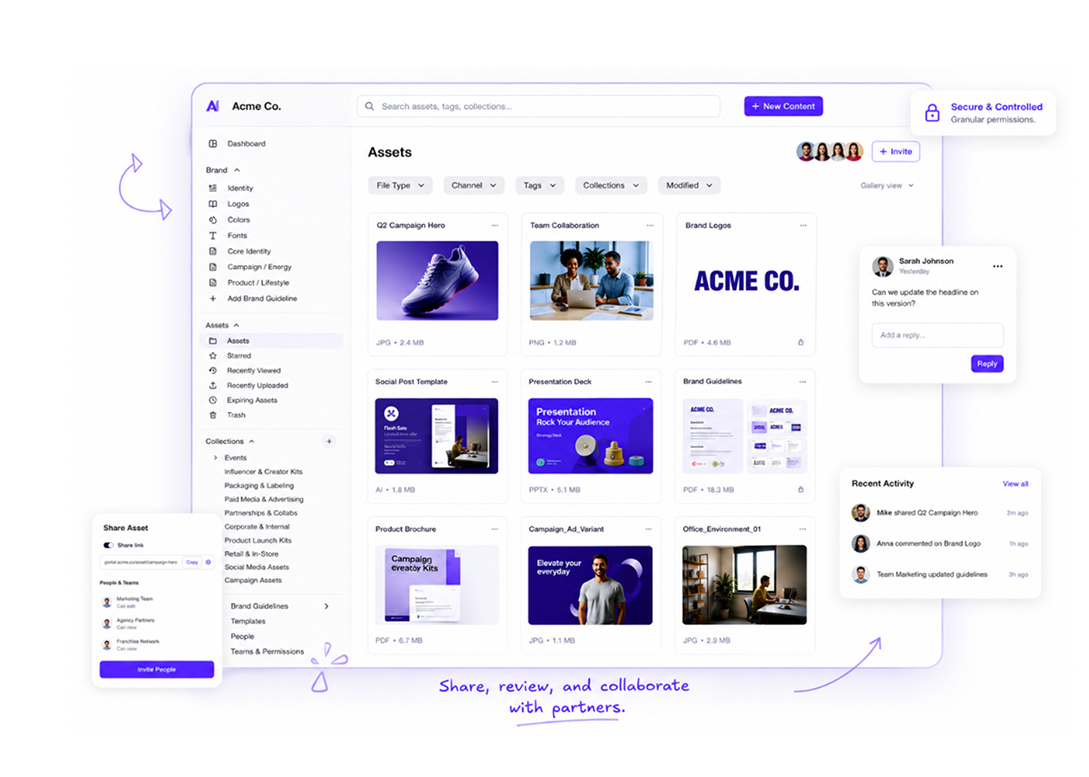
A digital asset management (DAM) platform is a natural home for the approved zone. It's where non-designers can search for logos and final PDFs. Working INDD files can stay on the design team's synced storage, where InDesign expects them.
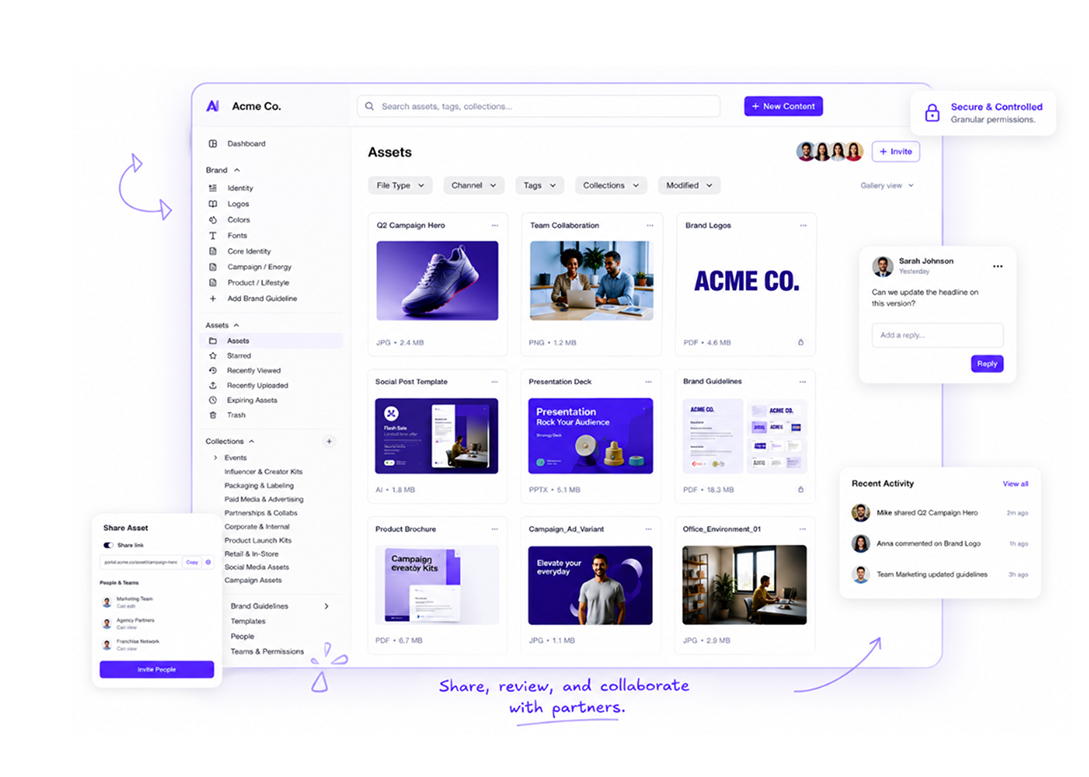
A DAM won't fix broken links inside a layout. What it can do is make sure the images and logos going into layouts are the approved ones. It can also hold the final package, so reprints start from a complete folder. For a broader view of how design teams use DAM day to day, see this guide on DAM for creative teams.
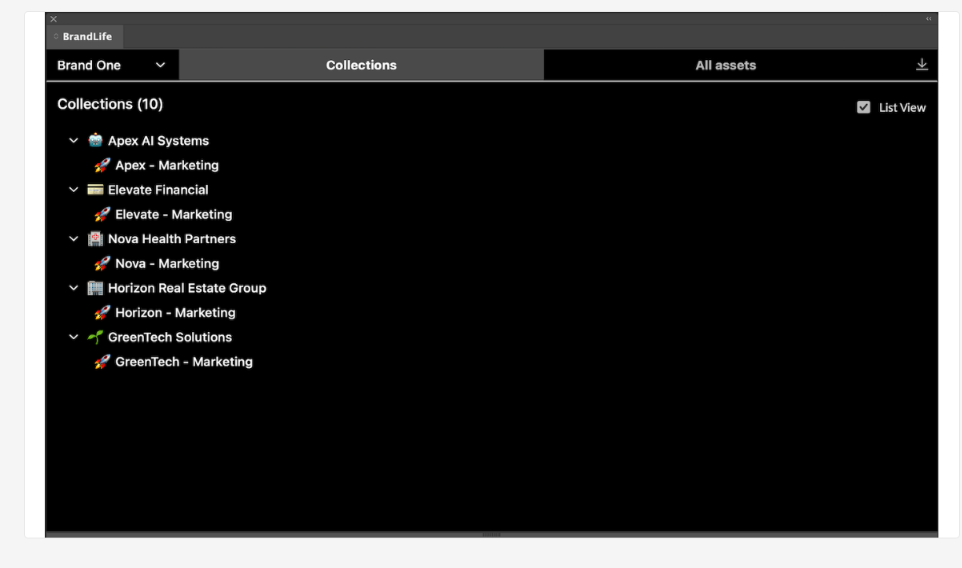
BrandLife gives growing and multi-brand teams one approved home for finished InDesign work:
Version control tracks every file update and marks one latest approved version, so approvals stay tied to the right file. Full history stays available, and any past version can be restored.
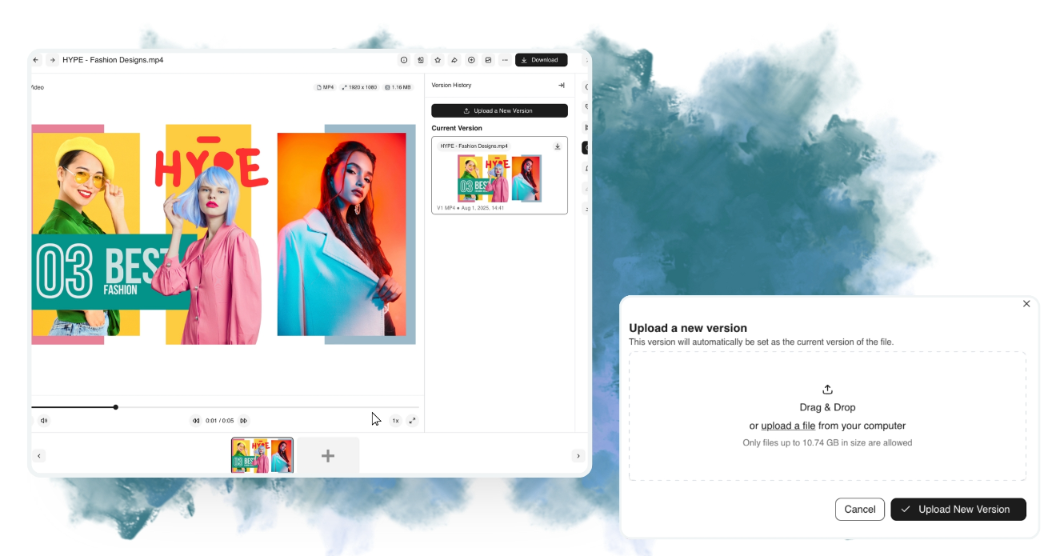
InDesign on the integrations page, described as access to brand assets while building layouts and publications.
Designers keep working INDD files and links in their synced project folders. Final PDFs and packaged folders go into BrandLife with version history.
Pricing is published. The Starter plan is $150/month, and Enterprise pricing is custom. Check current plan details before you compare.
Give your approved files a home today. Create your BrandLife workspace and upload this week's packaged final and PDF. Every update after that adds a version without replacing the history. The Starter plan is $150/month, and sign-up happens online.
Set up your approved asset library today.
Frequently Asked Questions
What is the difference between INDD and IDML files?
An INDD file is InDesign's native working document, tied to the version that saved it. An IDML file is an interchange format that opens in InDesign CS4 and later. Save an IDML with every final so people on older versions can still open the layout.
How do I fix missing links in InDesign?
Open the Links panel and select any file with the missing icon. Use Relink to point InDesign to the file's new location. To prevent repeats, keep a Links folder beside the INDD and package the project before moving it.
Does packaging an InDesign file include Adobe Fonts?
No. Adobe's Package option copies fonts except those activated from Adobe Fonts. The recipient needs their own Adobe Fonts access, or you replace those fonts before handoff.
Should working INDD files live in a DAM?
Usually not. Working INDD files change constantly and depend on linked files sitting in predictable folders. Keep them in synced project storage, and put approved finals and packages in the DAM.